

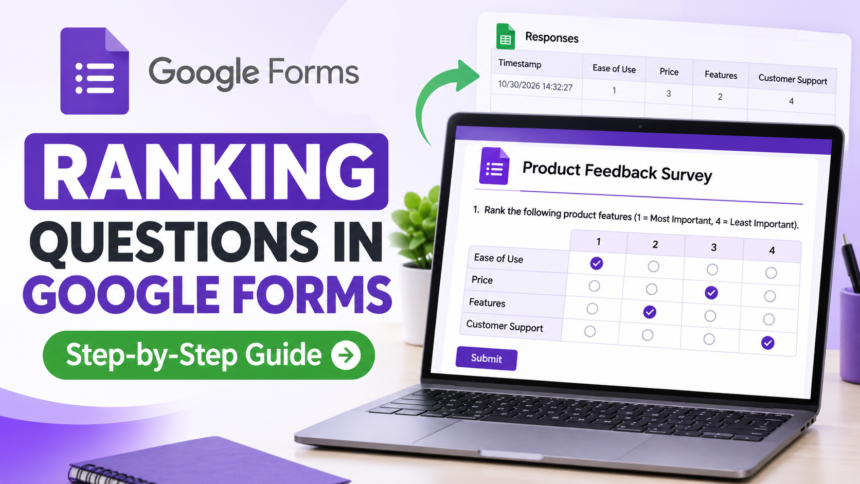
Ranking questions are a useful way to understand people’s preferences, priorities, and opinions. Instead of asking respondents to select one favourite option, these questions allow them to arrange multiple choices from most important to least important. Businesses, educators, researchers, and marketers often use ranking questions to collect more detailed feedback and make informed decisions.
- What Is a Ranking Question in Google Forms?
- How to Do a Ranking Question in Google Forms Step by Step
- Step 1: Open Google Forms and Create a New Form
- Step 2: Add Your Ranking Question
- Step 3: Select the Multiple Choice Grid Option
- Step 4: Add Rows and Ranking Columns
- Step 5: Enable Require a Response in Each Row
- Step 6: Enable Limit to One Response Per Column
- Step 7: Preview and Share Your Google Form
- How to Create a Ranking Question in Google Forms Using a Different Method
- Best Examples of Ranking Questions for Google Forms
- How to Analyze Ranking Question Responses in Google Forms
- Common Mistakes to Avoid When Creating Ranking Questions
- Frequently Asked Questions About Google Forms Ranking Questions
- Final Thoughts
Google Forms is a popular tool for creating online surveys because it is free, simple to use, and offers several question formats. Although it does not provide a dedicated ranking question type, you can create ranking-style questions using its Multiple Choice Grid feature.
If you are wondering how to do a ranking question in Google Forms, the process is straightforward once you understand how rows, columns, and response settings work. With a few adjustments, you can create a survey that allows respondents to rank different items without assigning the same position to multiple choices.
In this guide, we will explain the entire process, explore alternative methods, provide practical examples, and show you how to analyse your collected responses.
What Is a Ranking Question in Google Forms?
A ranking question asks respondents to arrange several options according to a particular preference, priority, or level of importance. Unlike standard multiple-choice questions, where participants select one answer, ranking questions allow them to assign different positions to multiple items.
For example, imagine a company wants to understand which product features customers value most. It could ask respondents to rank the following features:
- Affordable pricing
- Product quality
- Fast delivery
- Customer support
Participants would assign a ranking position to each feature, such as:
- Product quality
- Affordable pricing
- Customer support
- Fast delivery
This approach helps businesses identify which features matter most to their customers.
When creating ranking questions in Google Forms, you can use the Multiple Choice Grid question type. It allows you to place items in rows and ranking positions in columns.
By enabling the appropriate response settings, you can ensure that respondents select a different ranking position for each item.
Although this is a workaround rather than a dedicated ranking feature, it provides a practical way to collect ranked responses without using additional survey software.
How to Do a Ranking Question in Google Forms Step by Step
Creating a ranking-style question in Google Forms requires only a few steps. Follow the instructions below to build a survey that allows respondents to rank multiple options.
Step 1: Open Google Forms and Create a New Form
First, visit Google Forms using your preferred web browser.
Sign in to your Google account if you are not already logged in.
Once the homepage opens, select the Blank Form option to create a new survey. You can also choose an existing template if you want to customise a pre-designed form.
After opening a blank form, add a suitable title that explains the purpose of your survey.
For example, if you are collecting customer feedback, you might use the title:
“Customer Product Preference Survey”
You can also add a short description explaining what participants need to do.
For example:
“Please rank the following product features from most important to least important. Select a different ranking position for each feature.”
A clear title and description help respondents understand the survey before answering its questions.
Step 2: Add Your Ranking Question
Next, create the question that you want respondents to answer.
Click the question field and enter a clear instruction.
For example:
“Rank the following product features from most important to least important.”
Your question should explain exactly what respondents are expected to do.
Avoid vague instructions such as “Choose your preferences” because participants may not understand whether they should select one option or rank all available options.
If necessary, include a short explanation beneath the question.
You can also mention that position 1 represents the highest priority and the last position represents the lowest priority.
This small detail makes the survey easier to understand and reduces incorrect responses.
Step 3: Select the Multiple Choice Grid Option
Now comes the most important part of creating a Google Forms ranking question.
On the right side of the question, locate the question-type dropdown menu.
Click it to view the available question formats.
Select Multiple Choice Grid from the list.
Google Forms will automatically display two sections:
- Rows
- Columns
These sections allow you to organise your ranking question.
The Multiple Choice Grid feature is useful because respondents can select one answer from the available columns for each row.
You can also enable an additional setting to prevent participants from assigning the same ranking position to multiple items.
This makes the grid suitable for collecting ranking-style responses.
Step 4: Add Rows and Ranking Columns
After selecting Multiple Choice Grid, enter the items you want respondents to rank in the Rows section.
For example, if you are conducting a product survey, your rows might include:
- Product quality
- Affordable pricing
- Fast delivery
- Customer support
Next, enter the ranking positions in the Columns section:
- 1
- 2
- 3
- 4
Each row represents an item, while each column represents a ranking position.
Respondents will select one ranking position for every item.
For example, someone might rank the features as follows:
| Product feature | Ranking |
| Product quality | 1 |
| Affordable pricing | 2 |
| Fast delivery | 4 |
| Customer support | 3 |
Make sure the number of ranking positions matches the number of items if you want respondents to create a complete ranking.
You can add more rows and columns depending on the number of options in your survey.
Step 5: Enable Require a Response in Each Row
Once you have added the rows and columns, look at the bottom of the question.
Find the Require a response in each row setting and enable it.
This option ensures that respondents provide an answer for every item in the ranking question.
Without this setting, participants might skip some rows, resulting in incomplete survey data.
For example, if your question contains five product features, respondents must select a ranking position for all five features before submitting the form.
This setting is particularly useful when you need complete ranking information for analysis.
Step 6: Enable Limit to One Response Per Column
The next step is to prevent respondents from assigning the same ranking position to multiple items.
Click the three-dot menu at the bottom-right corner of the Multiple Choice Grid question.
Look for the Limit to one response per column option and enable it.
This setting is essential for creating a proper ranking-style question.
For example, without this restriction, a respondent might assign position 1 to both product quality and affordable pricing.
That would make it difficult to identify which feature they consider the most important.
When the setting is enabled, Google Forms prevents respondents from selecting the same column more than once.
Combined with the requirement to answer every row, this creates a unique ranking for each item.
Step 7: Preview and Share Your Google Form
Before sharing your survey, preview it to make sure everything works correctly.
Click the Preview icon, usually represented by an eye symbol, near the top of the form editor.
Review the question from a respondent’s perspective.
Check the following details:
- Is the ranking question easy to understand?
- Are all the items displayed correctly?
- Are the ranking positions arranged in the correct order?
- Is every row required?
- Is the one-response-per-column restriction enabled?
- Can respondents complete the question without errors?
Try submitting a test response to identify any problems.
Once you are satisfied with the form, use the publishing or sharing controls to make it available to respondents. The exact interface may vary slightly depending on your Google Forms version.
You can distribute your form through a link, email, or other available sharing options.
Your ranking survey is now ready to collect responses.
How to Create a Ranking Question in Google Forms Using a Different Method
Although the Multiple Choice Grid is the easiest way to create a ranking-style question, it is not the only option.
You can also use separate Dropdown questions to collect ranked preferences.
This method is particularly useful when you want respondents to rank only a few items or when you prefer a more straightforward question layout.
For example, imagine you want participants to rank their three favourite marketing channels.
You can create three separate questions:
Q N Which marketing channel is your first preference?
- Social media
- Email marketing
- Search engines
- Online advertisements
Which marketing channel is your second preference?
- Social media
- Email marketing
- Search engines
- Online advertisements
Which marketing channel is your third preference?
- Social media
- Email marketing
- Search engines
- Online advertisements
Select the Dropdown question type for each question.
You can make all three questions required so respondents cannot skip them.
However, there is an important limitation: Google Forms does not automatically prevent someone from selecting the same option in multiple dropdown questions.
For example, a respondent could select social media as both their first and second preference.
You would need to check ranking the responses or use additional validation methods to identify duplicate selections.
Therefore, the Multiple Choice Grid method is generally more suitable when you want respondents to rank several items without repeating ranking positions.
Best Examples of Ranking Questions for Google Forms
Ranking questions can be used in different industries and situations. The key is to select options that respondents can reasonably compare.
Here are some practical examples you can adapt for your next survey.
- Product preference survey
“The following product features from most important to least important.”
- Product quality
- Affordable pricing
- Design
- Durability
- Customer support
- Communication preferences
“your preferred communication channels.”</span>
- Phone calls
- Social media
- Live chat
- Customer satisfaction survey
“Rank the following service factors according to their importance when choosing a company.”</span>
- Response time
- Staff professionalism
- Service quality
- Pricing
- After-sales support
- Training needs assessment
“These training topics according to your learning priorities.”
- Communication skills
- Leadership
- Time management
- Technical skills
- Problem-solving
- Workplace benefits survey
“The following employee benefits based on their importance to you.”
- Health insurance
- Flexible working hours
- Paid holidays
- Career development
- Performance bonuses
These examples demonstrate how ranking questions can help organisations collect structured feedback and better understand their audiences.
How to Analyze Ranking Question Responses in Google Forms
After sharing your survey, the next step is to review the responses and identify the most popular ranking choices.
Google Forms provides a built-in response dashboard that allows you to monitor submissions.
Open your form and navigate to the Responses tab.
Here, you can review the collected answers and examine the available response summaries.
For more detailed analysis, connect your Google Form to Google Sheets.
To do this, open the Responses tab and select the Google Sheets icon. You can create a new spreadsheet or connect the responses to an existing spreadsheet when available.
Google Sheets makes it easier to organise, filter, and compare ranking results.
For example, you can calculate the average ranking position for each item.
A simple scoring approach is to assign:
- 1 point to the lowest-priority position.
- 2 points to the next position.
- 3 points to the next position.
- Higher points to higher-priority positions.
Alternatively, you can use a traditional ranking score in which position 1 receives the highest number of points.
For example, in a four-item ranking question, you could assign 4 points to first place, 3 to second place, 2 to third place, and 1 to fourth place.
Add the scores for each item across all respondents. The item with the highest total score will be the overall preference leader.
Remember to use the same scoring method consistently when comparing results.
Common Mistakes to Avoid When Creating Ranking Questions
Even though Google Forms makes it relatively easy to create ranking-style surveys, a few mistakes can affect the quality of your results.
Here are some common problems to avoid:
- Unclear instructions: Always explain whether respondents should rank items from most important to least important or the other way around.
- Too many ranking options: Avoid including an unnecessarily large number of items. Long ranking questions can become difficult and time-consuming to complete.
- Missing response settings: Enable Require a response in each row to avoid incomplete answers.
- Allowing duplicate rankings: Remember to enable Limit to one response per column. Otherwise, respondents may assign identical ranking positions to multiple items.
- Failing to test the form: Always preview your survey and submit a test response before distributing it.
- Using unrelated options: Make sure all items belong to the same category and can reasonably be compared.
Avoiding these mistakes will help you collect more accurate and useful survey responses.
Frequently Asked Questions About Google Forms Ranking Questions
Can You Create a Ranking Question in Google Forms?
Yes. You can create a ranking-style question in Google Forms by using the Multiple Choice Grid question type.
Add the items you want respondents to rank as rows and the ranking positions as columns. Then enable Require a response in each row and Limit to one response per column.
These settings allow respondents to assign a unique ranking position to each item.
Does Google Forms Have a Built-In Ranking Question Type?
No. Google Forms does not currently offer a separate question type specifically called Ranking.
However, the Multiple Choice Grid provides a practical workaround. You can also use separate Dropdown questions if you only need to collect a few preferences.
How Do You Rank Multiple Items in Google Forms?
To rank multiple items, create a Multiple Choice Grid question.
Add your items as rows and ranking positions such as 1, 2, 3, and 4 as columns.
Enable the two important settings: Require a response in each row and Limit to one response per column.
This allows respondents to rank each item without repeating a ranking position.
Can Respondents Rank the Same Item Twice?
A respondent cannot select multiple ranking positions for the same row in a Multiple Choice Grid because the question allows only one selection per row.
When Limit to one response per column is enabled, respondents also cannot assign the same ranking position to multiple rows.
Together, these restrictions help create a unique ranking for every item.
Can You Analyze Ranking Questions in Google Sheets?
Yes. You can connect Google Forms to Google Sheets to review and organise submitted responses.
Google Sheets allows you to calculate ranking scores, compare preferences, identify popular choices, and create charts to present your findings.
This is especially helpful when your survey receives a large number of responses.
What Is the Difference Between Ranking and Rating Questions?
Ranking and rating questions collect different types of information. A ranking question asks respondents to arrange several options according to preference or importance. Each option receives a relative position compared with the others. A rating question asks respondents to evaluate an individual item using a numerical or descriptive scale.
For example, ranking might ask someone to arrange five products from favourite to least favourite. A rating question might ask them to rate each product from 1 to 5 stars. Ranking helps identify priorities, while rating helps measure individual opinions or satisfaction levels.
Final Thoughts
Learning how to do a ranking question in Google Forms can make your surveys more useful and informative. Although Google Forms does not include a dedicated ranking question type, the Multiple Choice Grid provides a simple and effective alternative.
By adding your items as rows, ranking positions as columns, and enabling the appropriate response restrictions, you can collect organised ranking data without using complicated tools.
At Dubai PR Submission, we believe in sharing practical digital guides and helpful resources that make online tools easier to use. Whether you are a business owner, marketer, educator, or researcher, understanding how to create effective surveys can help you gather valuable feedback and make better decisions.
Remember to write clear instructions, keep your options manageable, and test your survey before sharing it. With these simple steps, you can create better surveys, understand respondent preferences, and make more informed decisions using Google Forms.